If you have a mobile phone and an internet connection, you already have what you need to start earning rewards online. No laptop, no special equipment, just your phone and a few simple activities.
In this post, I’ll show you how I use my own smartphone on MacroHustle to answer questions, complete activities, and get rewarded. It’s beginner-friendly, so whether you’re a student or you’re just starting your online journey, you can follow along.
By the end, you’ll know how to:
- Open and log in to the MacroHustle dashboard on your phone
- Answer questions and get rewarded for correct answers
- Find the other activities on the platform: surveys, social tasks, and the marketplace
Step 1: Get to the MacroHustle Dashboard
Getting there takes less than a minute:
- Open google.com on your phone.
- Search for macrohustle.com.
- Tap the result to open the website.
That takes you straight to the dashboard, where you can look around the menu and see what’s available.
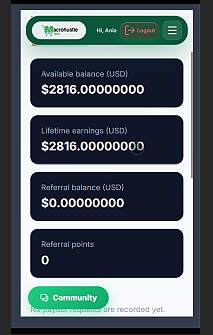
Step 2: Log In First (Don’t Skip This!)
This is the step I never forget, and I want you to remember it too. Always log in before you start any activity.
If you carry out activities while you’re not logged in, you may not be rewarded for them. Imagine answering five questions and getting nothing for it. Log in first.
Here’s how:
- Tap the Login button.
- Tap the checkbox to complete the simple verification.
- Tap the Google login button, which activates your Google account.
- Wait for the dashboard to load. When you see the success message, tap OK.
You’ll land back on the question dashboard, now logged in.
Step 3: Understand How the Dashboard Works
Once you’re logged in, a few things are worth noticing.
Your Trust Score
You’ll see your trust score on the dashboard. This is the number I keep an eye on, because engagement is what matters on this platform. The more you engage, the more your trust score increases.
The Menu
The menu has several sections:
- Answer activities (my main focus)
- Surveys
- Social tasks
- Marketplace
On a phone, just slide the menu with your finger to move between them.
Based on the article, which word best completes this sentence: "Every single day, _____ businesses, market researchers, and artificial intelligence developers spend millions of dollars collecting data from real people"?
Step 4: Answer Questions and Earn Rewards
This is the first thing I do on the platform, and it’s how rewards work here: you get rewarded for every correct answer.
Scroll down on the question dashboard and you’ll see a list of questions and blog posts. Every blog post has its own question attached.
Here’s the process:
- Tap Answer Question on any item in the list.
- Wait for the page to load fully. On a phone this can take a moment.
- Scroll down until you see the question.
- Pick one of the four options.
- Tap Complete Activity.
- Wait for the system to tell you whether your answer is correct.
If you get it right, you’ll see a different message and you’ll be rewarded. If you get it wrong, you’ll see that too. Tap OK and try another question.
Tip 1: Read the Blog Post First
The best way to get answers right is to pay attention to the blog post. After reading it, you’ll have a good idea of what the question is about. If you tap an option without reading, the page takes you back up to the paragraphs so you can read before answering. Wait for the text to finish loading so you can read it properly.
Tip 2: Don’t Rely on Guessing Alone
I’ll be honest with you: when I pick an answer just from my head, I don’t always get it right. I picked option A on one question and got it wrong. I picked option B on another and got it wrong again. Using my head alone isn’t 100% accurate.
That’s why I use an extra step.
Step 5: Use the Direct Answer Engine to Check Your Answer
Here’s what I do when I want to be sure:
- Open a question and wait for the page to finish loading.
- Copy the question and all the options. I highlight everything on the page and copy it.
- Go to the page called Direct Answer Engine.
- Paste the question and the options.
- Tap Find Correct Answer. It tells you which option is correct. In my example, it was option A.
- Go back to the question page and choose that option.
- Tap Complete Activity.
This time, the page loaded and showed me that I got the answer correct. Remember, you only get rewarded for correct answers.
Tap OK, move on to the next question, and repeat. That’s the whole routine for using MacroHustle on your mobile phone.
Step 6: Explore the Other Ways to Earn
Questions aren’t the only thing on the platform. Slide through the menu with your finger and you’ll find:
- Surveys: take a survey if that’s what you’re in the mood for.
- Social tasks: open the section and complete tasks one after the other.
- Marketplace: another place to engage with activities.
Pick whichever fits your interest at that moment.
Good News About Social Tasks
If you start a social task and your phone trips off, or you can’t finish at that moment, you don’t lose it. You can always come back and resume the task later. That makes it flexible if your schedule or network is unreliable.
Quick Recap: Your Checklist
- ✅ Search microhustle.com on Google
- ✅ Log in first (verification, then Google login)
- ✅ Watch your trust score: engagement is what matters
- ✅ Read the blog post before answering
- ✅ Use the Direct Answer Engine when you’re unsure
- ✅ Tap Complete Activity and confirm you got it right
- ✅ Explore surveys, social tasks and the marketplace
Conclusion
That’s how I use MacroHustle on my smartphone to get rewarded for every correct answer and every activity I complete. It works on a phone or a tablet, so you can do it from wherever you are. The key habits are logging in first, reading before you answer, and staying consistent so your trust score keeps growing.
Now I’d love to hear from you:
- Did you try this? Which section did you start with: questions, surveys, or social tasks?
- Do you have any questions about the steps above? Drop them in the comments. I’m more than happy to answer every one.
- What topic should I cover next? Tell me, and I’ll make it happen.
I’ll see you in the next post. Peace out! ✌️